SenaSuite help
User guide
Find your role below for the first tasks to try. Screens may vary by school, permissions and enabled modules. Sign in through the portal your school provided.
School administrator
Set up the school, manage people and keep academic and financial records accurate.
- Choose the correct organisation and school before changing records.
- Create the academic year, departments, programmes or classes, subjects and staff before importing learners.
- Review import previews and errors before committing; invite only the intended users.
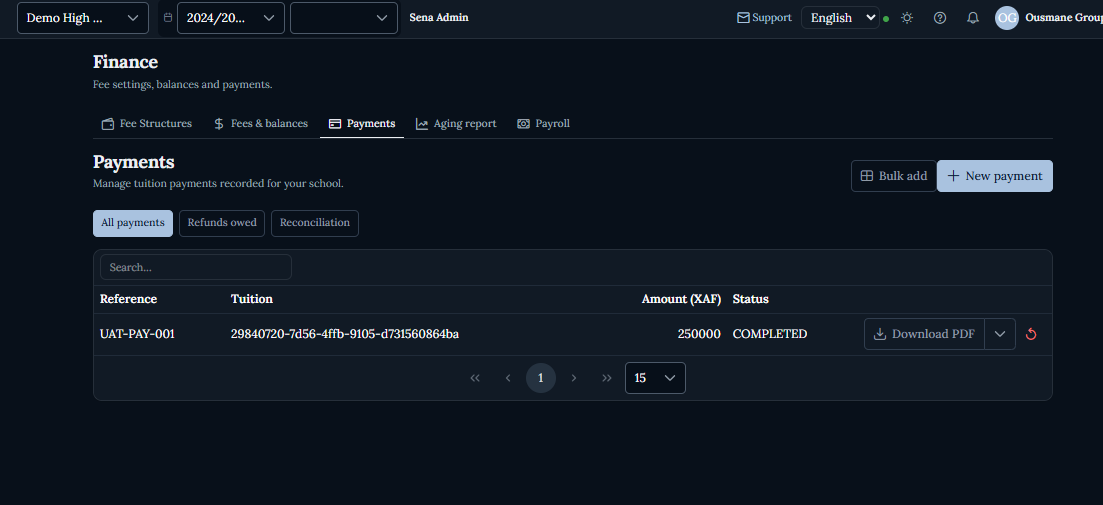
- Use Finance to inspect balances and payments; verify a receipt before treating a payment as settled.
Teacher
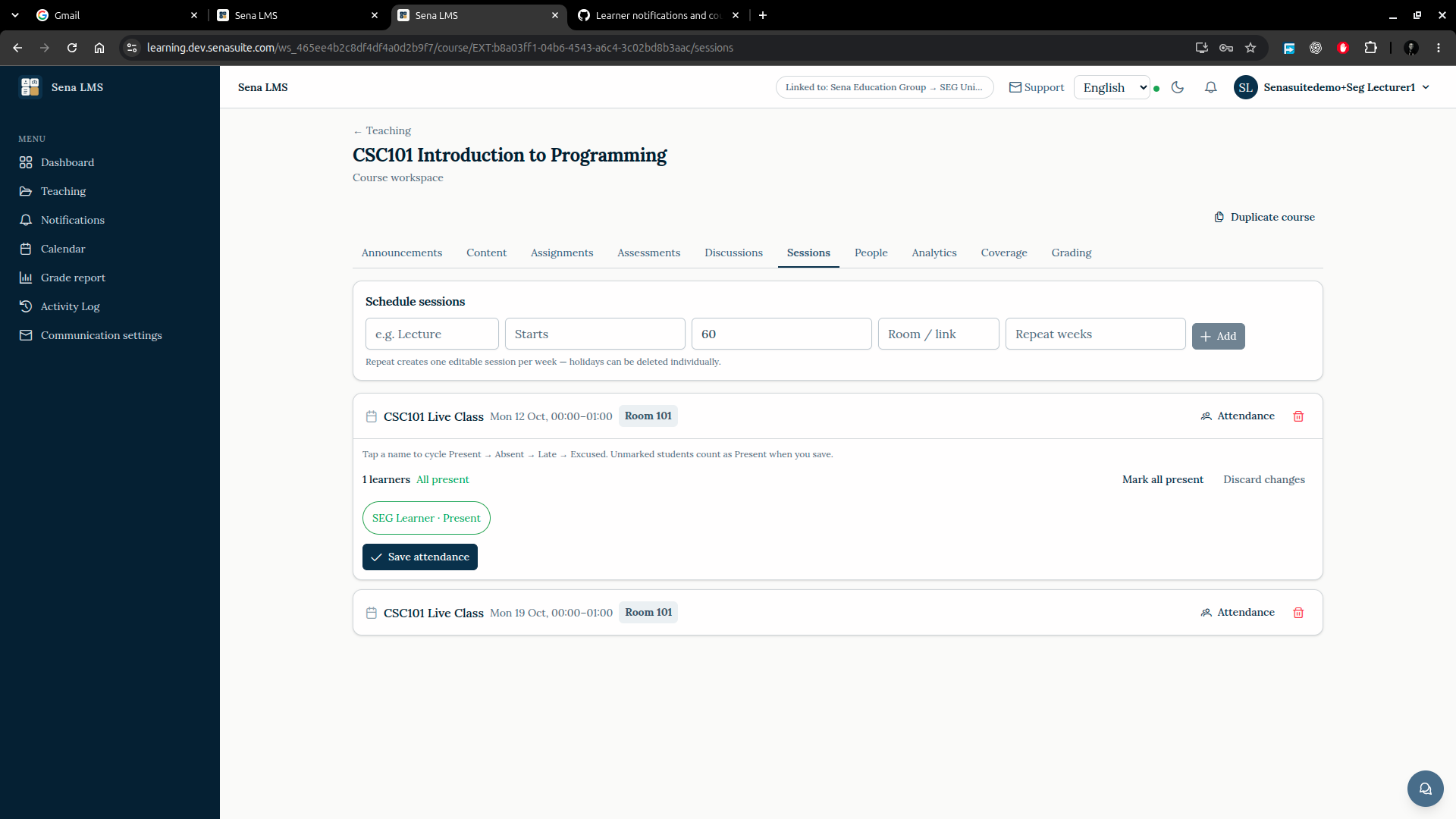
Teach assigned classes, record attendance and marks, and communicate with learners.
- Open Today or Classes to find the correct class and lesson.
- Check the academic period and class list before taking attendance or entering scores.
- Save marks, then confirm the displayed values and sync status before leaving the page.
- Use Learning for course content, assignments and announcements when enabled by the school.
Student
Follow classes, grades, fees and messages from your own account.
- Check Today for the timetable and current academic period.
- Open Grades and Registration to review results and available subjects or courses.
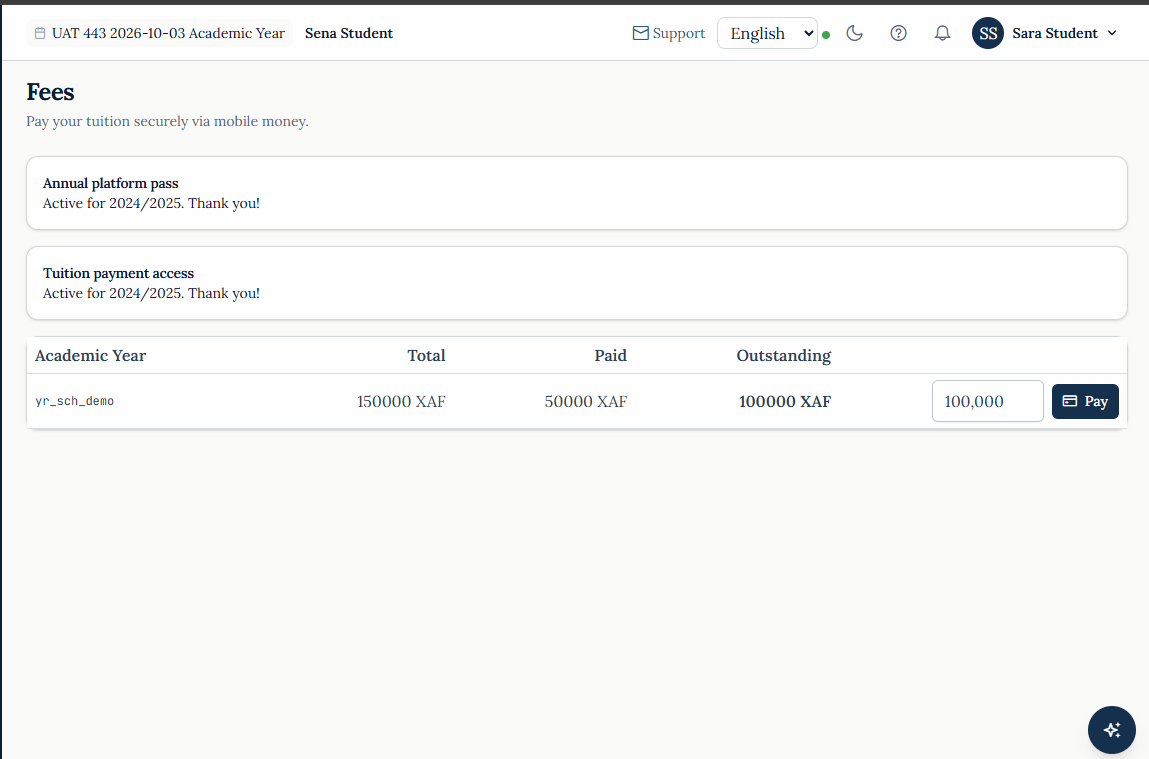
- On Fees, check the academic year and outstanding amount before paying; keep the receipt.
- Open Learning for course materials, submissions and feedback when your school uses it.
Parent or guardian
Follow each linked learner without using the learner's own login.
- Select the correct child before reading grades, attendance or fees.
- Review the schedule and school messages regularly.
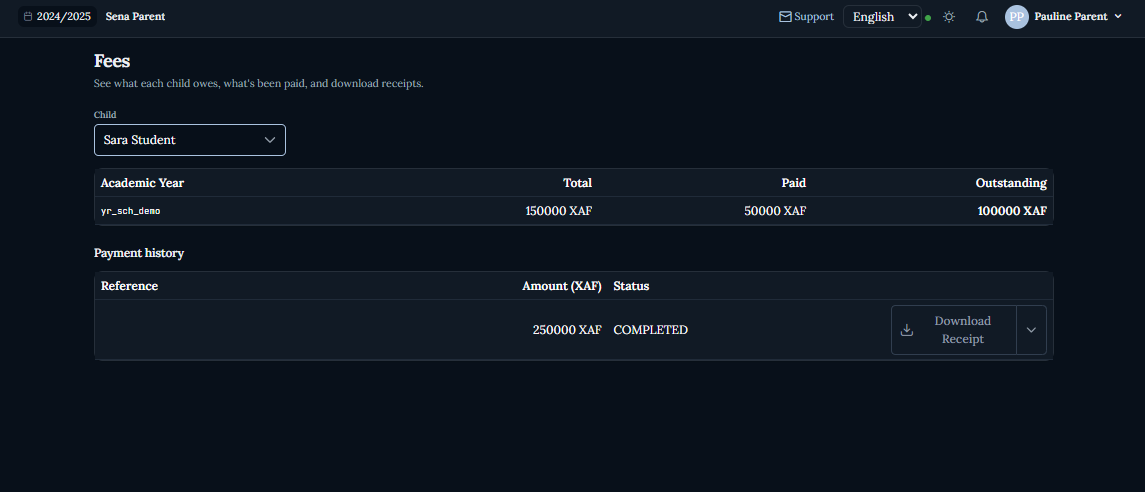
- On Fees, check paid and outstanding amounts and download receipts for your records.
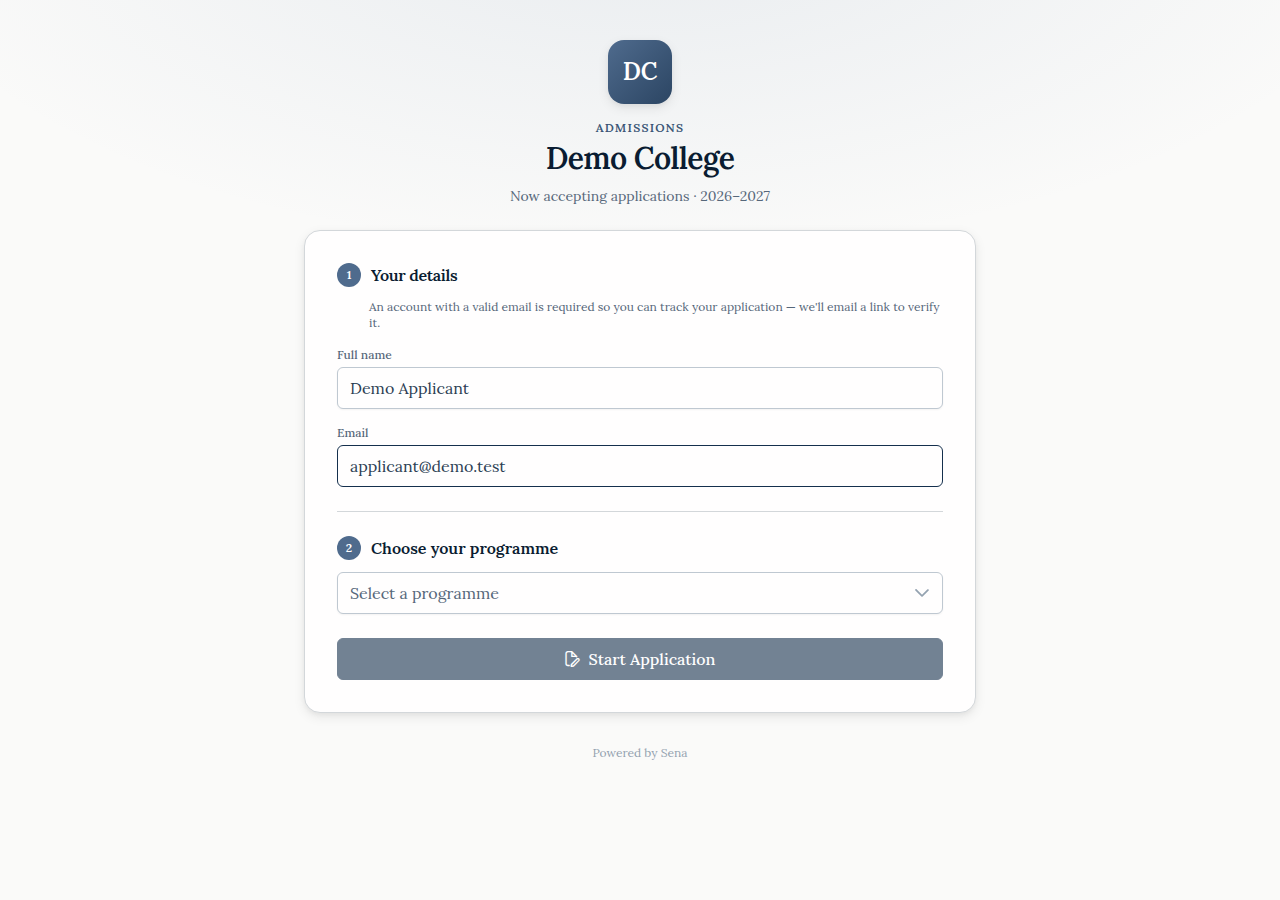
Applicant
Start an application, provide documents and follow the school's decision.
- Enter your details, verify your email and choose a programme that is open for admission.
- Complete the application form and upload the required PDF or image documents.
- Review all details before submitting; use Status to follow requests or an offer.
Learning
The course workspace for lecturers and learners, separate from school administration.
- Open Teaching or Learning, then select the correct course and academic period.
- Lecturers can publish content and assessments; learners can read, submit and review feedback.
- Use the course tabs for announcements, discussions, sessions and grades according to your role.
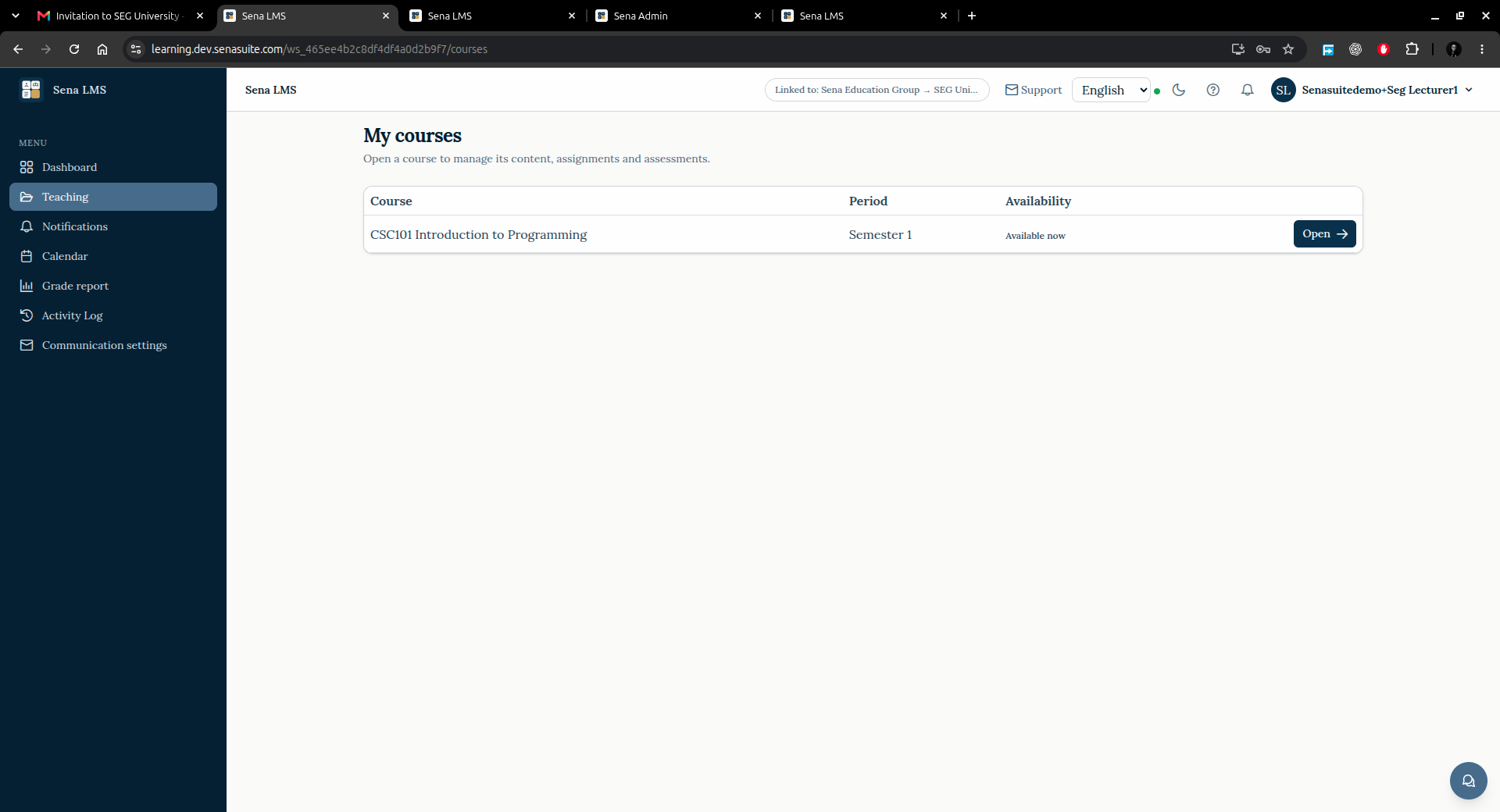
Demo screenshots use synthetic UAT data. Do not use another person's credentials or upload private records to a demo environment.
Inside each portal, open Help (?) for guided tours of the current page and the full Tutorials list.